
Animate Photo AI in 2026: Talking Head, Face Motion & More
Animate Photo AI in 2026 broken down into real workflows, not hype. Learn how to create realistic talking head videos, control face motion, choose the right tools for each use case, and avoid the common mistakes that make results look unnatural. Includes practical tips, examples, and ways to turn simple animations into consistent content.

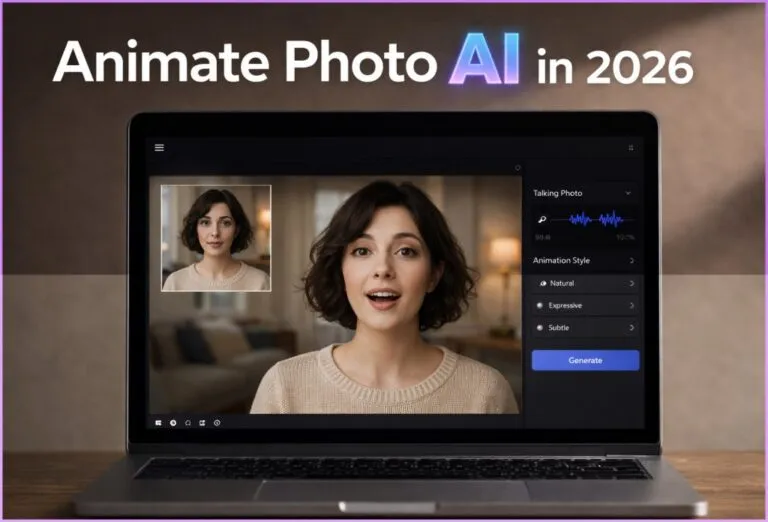
animate photo ai
Animate photo AI turns a still image into a short video using motion or speech-driven animation. There are three main types: subtle motion (blink, head tilt), talking head (lip-sync with voice), and full image-to-video clips. Realism depends on the source photo, lighting, expression, and how controlled the motion is. For best results, keep movements minimal, use clear front-facing images, and match the tool to your exact goal.
Most people try animate photo AI tools with a simple idea. Take a static photo, make it move, and use it in a Reel, an ad, or a landing page. It looks quick on paper. Upload the image, click generate, get a video.
Then the result comes back and something feels off. The face moves, but not in a natural way. Lips don’t quite match the voice. Expressions look flat or slightly distorted. The video works technically, yet it doesn’t feel convincing.
The reason is simple. Animate photo AI isn’t one single process. There are different approaches behind it. Some tools add small motion like blinking or a slight head turn. Others build full talking head videos with synced speech. More advanced systems turn a still image into a short dynamic clip.
Each approach needs a different setup. The source photo, lighting, angle, and even the starting expression matter more than people expect. This guide explains how it works, how to get realistic motion, which tools fit each use case, and where most results break down.
What Animate Photo AI Technology Actually Covers Today
Most confusion starts with expectations. Not every tool can animate face movements, generate speech, and produce full video from one image at the same level. These are separate workflows, even if platforms present them together. The underlying animated AI systems overlap, but the results you get depend on which path you choose.
Subtle Motion vs Talking Head vs Full Animation
Subtle motion tools handle small details. A blink, a slight head tilt, a soft zoom. These are used in ads, landing pages, and social content where movement should stay clean and controlled.
Talking head tools focus on speech. They sync lips, add facial expression, and turn a portrait into a speaking clip. This is common for short explainers, promo videos, and character-style content.
Full animation tools go further. They attempt to create short video sequences from a single image, often using prompts or reference motion. These require more control and break faster if the input is weak.
Why People Confuse These Categories
Most platforms bundle these features under one interface. The labels look similar, so users expect the same result from every option. That mismatch is where most low-quality outputs start.
How to Animate a Photo with AI (Step-by-Step That Actually Works)
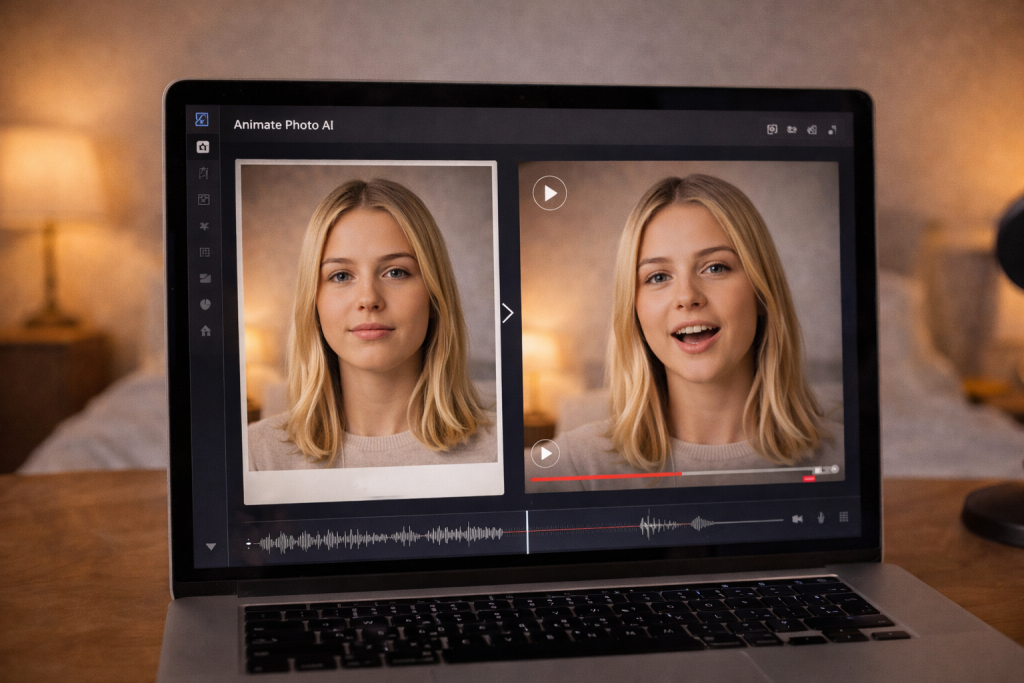
Most workflows look simple on the surface, but small details decide whether the result looks usable or not. If you approach it with the right sequence, you avoid most of the common issues from the start.
Basic Workflow:
- Choose the animation type
Decide what you actually need: subtle motion, a talking head, or a short video clip. This choice defines everything that follows. - Prepare the image
Use a clear, front-facing photo. Good lighting, neutral expression, no heavy shadows. Most tools struggle with angled faces or low-quality inputs. - Select the tool
Pick based on the goal, not popularity. Some tools specialize in lip-sync, others in simple motion. Even an animation AI free option can work if the use case is basic. - Add motion or audio
For talking clips, upload audio or use text-to-speech. For motion, keep it minimal. Small movements look more natural. - Export and review
Generate a short version first. Fix issues before scaling or creating longer clips with animate photo AI tools.
A simple example: a creator takes a portrait, adds a short voice line, and turns it into a talking-head clip used in a traffic funnel. It works because the motion is controlled, the voice matches the expression, and the video stays short enough to feel natural.
What Makes AI Photo Animation Look Real
Most tools can generate motion. Fewer produce something that feels natural. The gap usually comes from the input and from how aggressively the face is being animated. When you animate photo AI, the system is estimating how a real face would move between frames. Clean inputs make those estimates look believable. Weak inputs expose the seams fast.
Key Realism Factors:
- Source quality. A sharp, front-facing image gives the model clean facial landmarks. That matters even more when you animate old photos, where blur, film grain, or damaged details reduce tracking accuracy.
- Lighting. Even light across the face helps the model read depth and contours correctly. Hard shadows often create jitter around the mouth, nose, and eyes.
- Expression. A relaxed starting expression gives the system room to move. A tense smile or exaggerated pose usually becomes unstable.
- Motion scale. Small movement is safer. A blink, slight nod, or soft head turn looks more realistic than dramatic motion.
- Voice sync. In talking-head clips, good lip-sync is not enough. The emotional tone of the voice also has to match the face.
- Duration. Shorter clips usually hold together better. Artifacts become more visible as the sequence gets longer.
Why the Uncanny Valley Happens
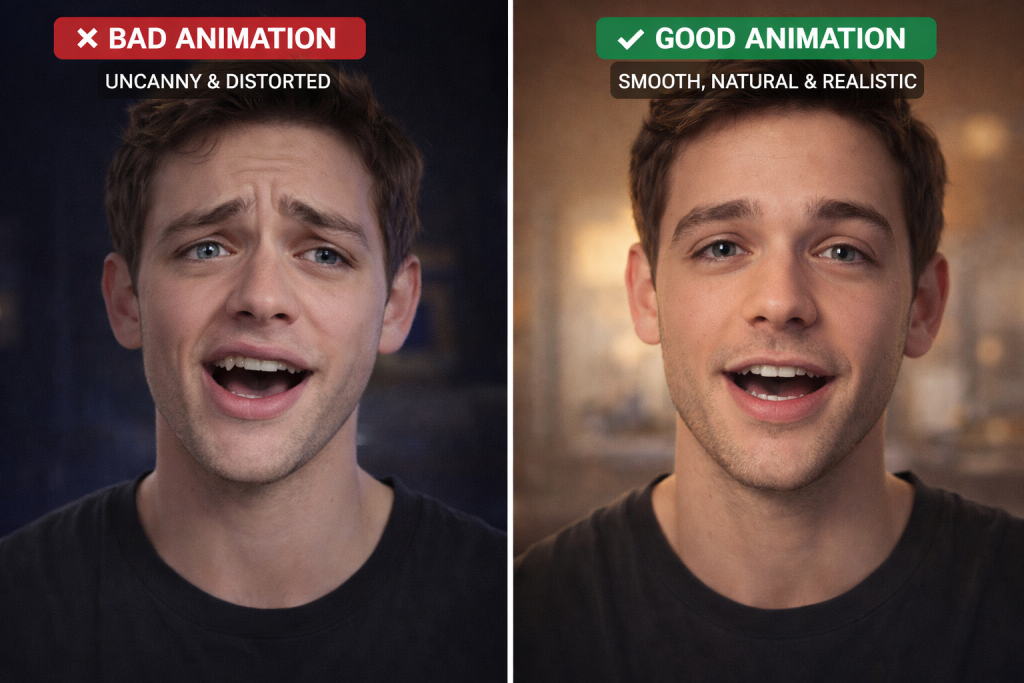
The uncanny effect shows up when several small errors stack together. The movement may be technically smooth, but the timing feels wrong. The mouth opens too wide for the line being spoken. The eyes stay too still while the face is active. A cheerful voice gets mapped onto a blank or tense expression. Then landmark distortion adds another layer: lips drift, eyelids wobble, or the jawline shifts between frames. None of these flaws has to be huge. A few subtle mismatches are enough to make the viewer feel that something is off, even before they can explain why.
“If something gets too close to human but still isn’t perfect, we start to react with disquiet or unease, even disgust. Think of dolls, clowns, or statues. There’s something creepy about how they’re nearly human but not quite right.”
— Сan the uncanny valley explain why AI images and videos feel so weird?, TechRadar
How Prompts Affect Motion Quality
Prompts control how the animation behaves, not what the image already shows. A common mistake is describing the whole scene again instead of telling the system what should change. Focus on motion: slight head turn, soft blink, natural lip movement. Keep instructions short and specific. When prompts get overloaded, tools tend to exaggerate movement, which leads to distorted faces and that familiar uncanny effect. Clean prompts produce smaller, more controlled changes. If the input photo is strong, you don’t need complex wording. Simple direction usually gives the most believable result.
Common Mistakes That Kill Results
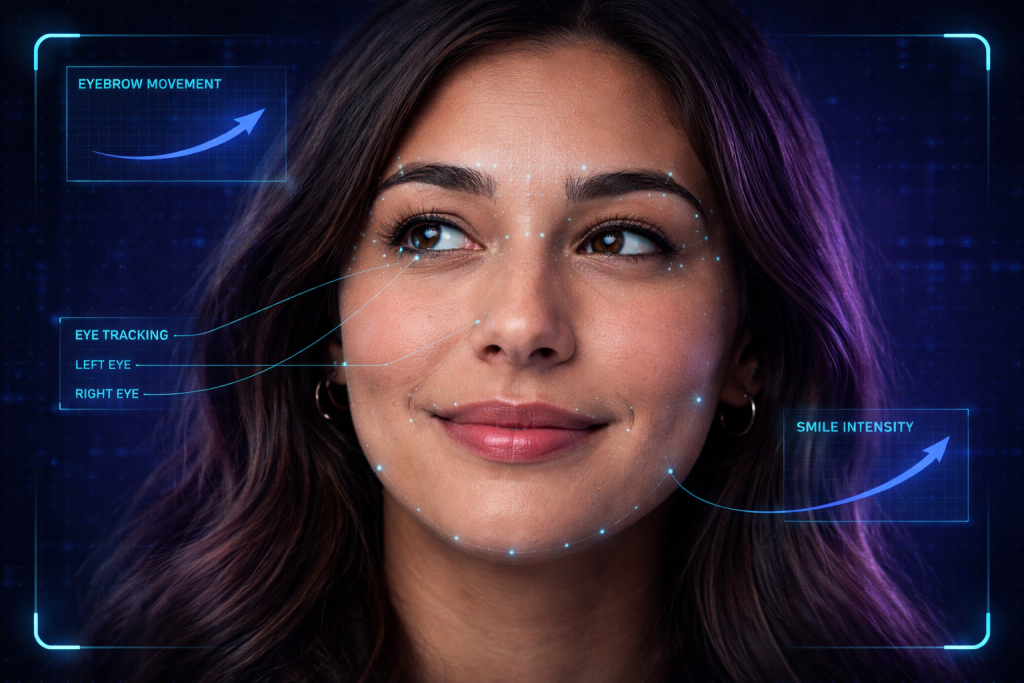
Most weak results don’t come from the tool itself. They usually trace back to a few early decisions that quietly break the output.
The first issue is the source photo. If the face is turned, partially hidden, or poorly lit, the system struggles to track features. You end up with drifting lips, unstable eyes, or uneven motion. Clean, front-facing images solve half the problem before generation even starts.
Another common mistake is picking the wrong type of tool. A simple animation tool won’t handle speech properly, and a talking-head generator won’t create convincing full-motion clips. When expectations don’t match the tool, the result feels off even if nothing technically fails.
Then comes overprompting. Adding too many instructions forces the system to exaggerate movement. Instead of subtle motion, you get stretched expressions and unnatural transitions.
Length also plays a role. Long clips tend to degrade over time. Small artifacts become more visible with each second, especially in facial areas.
Finally, voice mismatch breaks realism fast. If the tone, pacing, or emotion doesn’t align with the face, the viewer notices immediately, even if the lip-sync looks technically correct.
Popular Tools and Platforms by Use Case
Not all tools solve the same problem. The easiest way to avoid bad results is to match the tool to the outcome you want.
Talking Head Tools
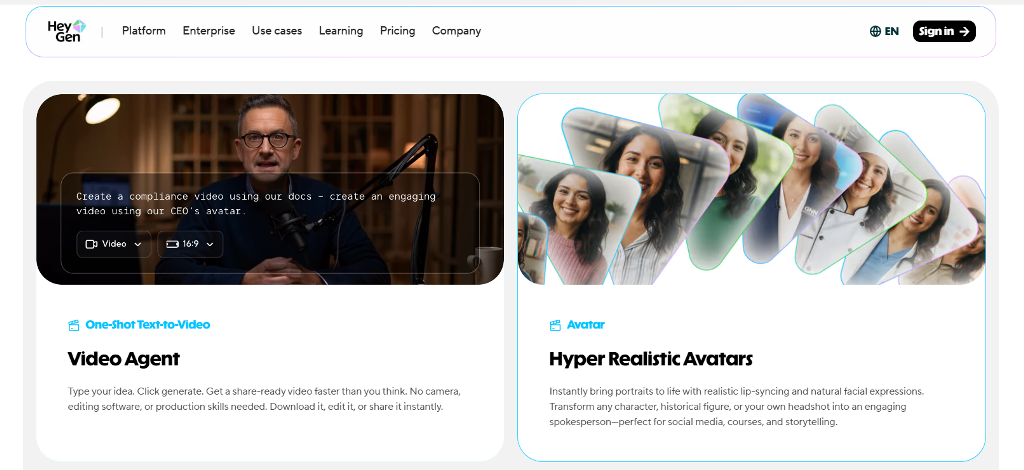
If your goal is a speaking avatar, start here. Platforms like HeyGen and D-ID focus on lip-sync and facial animation. You upload a portrait, add text or voice, and get a talking clip that can be used in ads or short-form content.
ElevenLabs is often used alongside them to generate more natural speech, especially when tone matters.
Some creators also test simpler tools like YesChat to animate photo workflows when they just need a fast talking-face output. Animate photo AI YesChat setups work for quick tests, but control over motion and expression is limited, so results vary.
Subtle Animation Tools
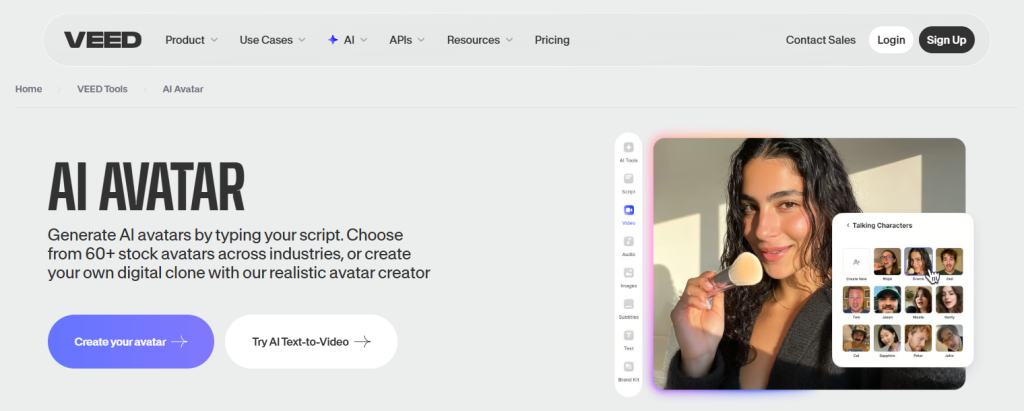
If you don’t need speech, simpler tools are more reliable. VEED and Perfect Corp focus on light motion like blinking, slight head movement, or gentle zoom.
These are commonly used for short loops, landing visuals, or quick social content where movement should stay clean and minimal.
They’re easy to use and fast, but they won’t give you expressive or voice-driven results.
Advanced Image-to-Video Tools
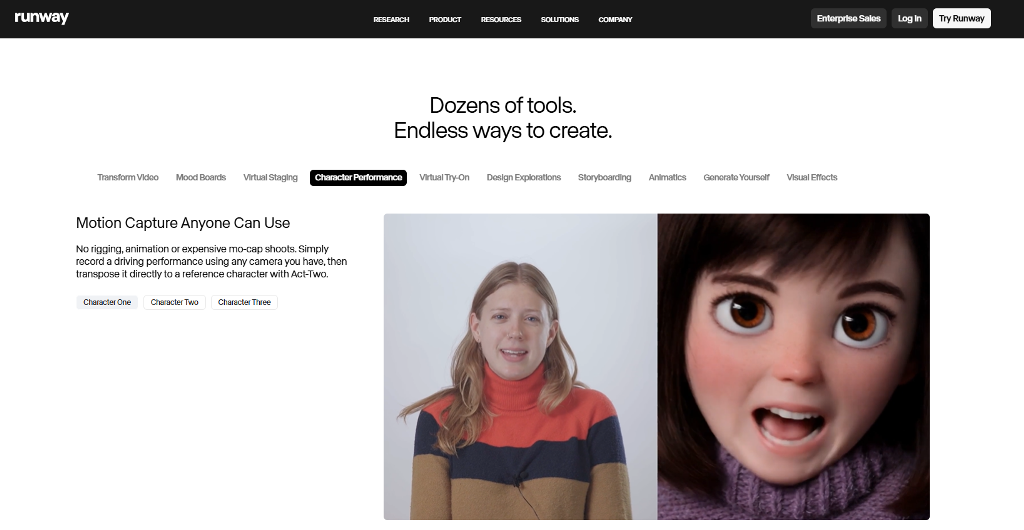
For more complex output, you move into image-to-video systems. Runway and Sora can generate short clips from a single image with guided motion.
This is the direction most advanced workflows follow. Tutorials from Videomaker often walk through this process step by step, especially when explaining how to animate photo AI from workflows that require more control.
Comparison Table
| Use case | Output type | Difficulty | Realism | Best for | Example tools | Limitations |
| Talking head / avatar | Speech + facial animation | Medium | High (with good input) | Ads, explainers, creator funnels, adult promo | HeyGen, D-ID, ElevenLabs | Limited body motion, depends on voice quality |
| Subtle animation | Light motion (blink, tilt, zoom) | Low | Medium | Social posts, landing pages, loops | VEED, Perfect Corp | No speech, limited expression |
| Image-to-video | Short dynamic clips | High | Variable | Creative content, storytelling | Runway, Sora | Requires prompting skill, unstable with complex scenes |
From Animated Photo to AI Influencer
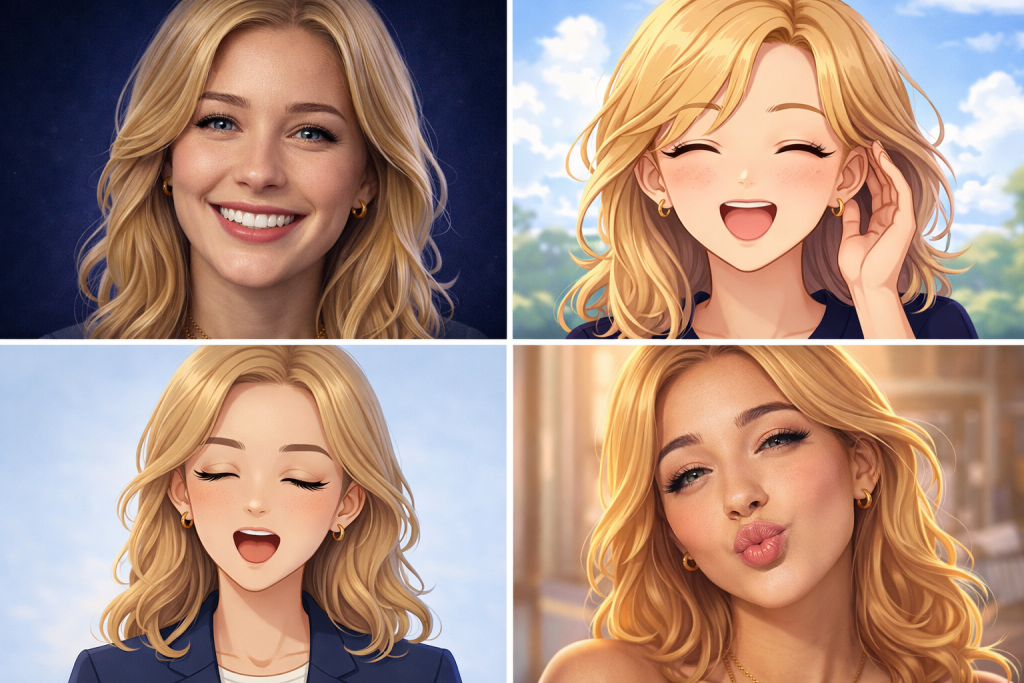
A moving photo can be more than a visual trick. For many creators, it becomes a repeatable content format. One face, one style, one tone. Instead of recording every clip manually, you generate short videos that stay visually consistent across posts, landing pages, and ads.
This is where things start to scale. A single image turns into a recognizable on-screen presence. You test hooks, messages, and formats much faster. Many creators first explore this through tutorials like animate photo AI from Videomaker or other reliable sources, then refine their setup once they see what actually performs.
Real Monetization Scenarios
One direction is building a simple AI influencer format. You pick a niche, define a tone, and produce short talking clips on a regular basis. These can support product promotion, educational content, or social growth strategies.
Another approach focuses on volume and testing. Creators often start with quick experiments using animate photo AI free no sign up tools. This lets them test formats instantly before committing to more advanced setups.
Here’s how that scales in practice:
Example:
Time per clip = 12 minutes
Clips per hour = 60 ÷ 12 = 5
Work time = 20 hours/month
Total clips = 20 × 5 = 100
Average views per clip = 300
Total views = 100 × 300 = 30,000
Conversion rate = 2%
Conversions = 30,000 × 0.02 = 600
Revenue per conversion = $0.25
Gross revenue = 600 × $0.25 = $150
Cost (tools/subscriptions) = $30
Net revenue = $150 − $30 = $120/month
Even simple setups can produce measurable results when output is consistent and tested over time.
Best Practices for Consistent Results
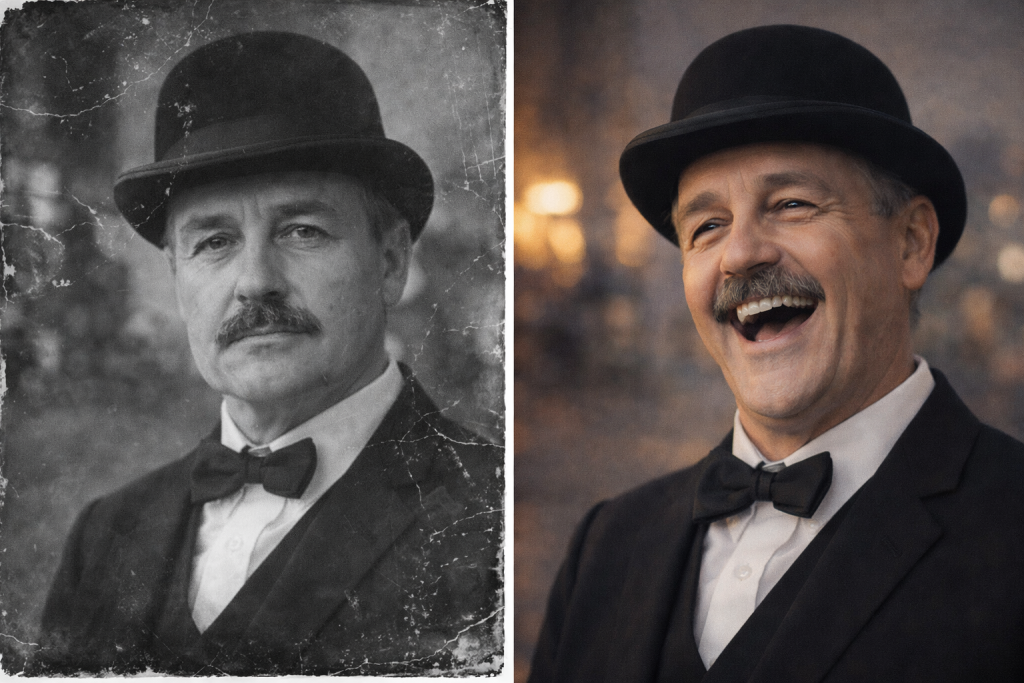
Consistency matters more than complexity. If you want stable output from animate photo AI, focus on repeatable inputs and controlled motion.
- Start with the same type of source image every time. Similar lighting, angle, and framing help the system keep facial features stable across clips. Changing these too often leads to unpredictable results.
- Keep clips short. Five to ten seconds is usually enough to deliver a message without introducing visible artifacts. Longer videos tend to lose quality, especially around the mouth and eyes.
- Pay attention to emotion and voice sync. The tone of the audio should match the expression in the image. Even small mismatches break the illusion quickly.
- Finally, test variations. Change one element at a time—voice, phrasing, or motion—and compare results. This is how you find what actually works.
How to Choose the Right Approach
At this point, the choice is less about tools and more about intent. What are you trying to produce: attention, explanation, or visual depth? The same photo can lead to very different outcomes depending on that goal. Instead of comparing features again, it’s more useful to align your workflow with the result you expect. This saves time and avoids the trial-and-error loop most people fall into early on.
| Goal | Method | Tool type | Skill level | Output expectation | Best when | Avoid when |
| Grab attention | Subtle motion | Lightweight tools | Beginner | Clean looping visuals | You need quick content for social posts or landing pages | You need speech or expressive emotion |
| Deliver message | Talking head | Lip-sync / avatar tools | Intermediate | Clear speech with stable face motion | You want to explain something or create short ad-style videos | The source image has poor quality or strong angle |
| Create dynamic visuals | Image-to-video | Advanced tools | Advanced | More complex motion and visual variation | You want creative or cinematic-style clips | You need stable, repeatable results |
| Test ideas fast | Mixed workflow | Simple + talking head tools | Beginner–Intermediate | Fast content variations | You are testing hooks, formats, or messaging | You expect polished final output from each clip |
| Build persona | Reusable avatar | Talking head + voice tools | Intermediate | Consistent visual identity across clips | You want a recognizable character or long-term content format | You need multiple different faces or styles |
What’s Changing in 2026
The biggest shift is identity locking. Newer tools can keep the same face stable across multiple clips, even when you change voice or motion. Earlier outputs often “drifted” — the face looked slightly different in each generation. Now creators can reuse one image and build consistent content around it.
The second change is reference-driven animation. Instead of random motion, many tools now follow input: audio, short video, or predefined motion patterns. This reduces guesswork. You get more predictable lip-sync and fewer broken expressions, especially in talking-head formats.
The third shift is low-friction access. More tools now work directly in the browser with minimal setup. You can test ideas instantly without complex pipelines, which makes iteration faster and lowers the barrier for new creators.
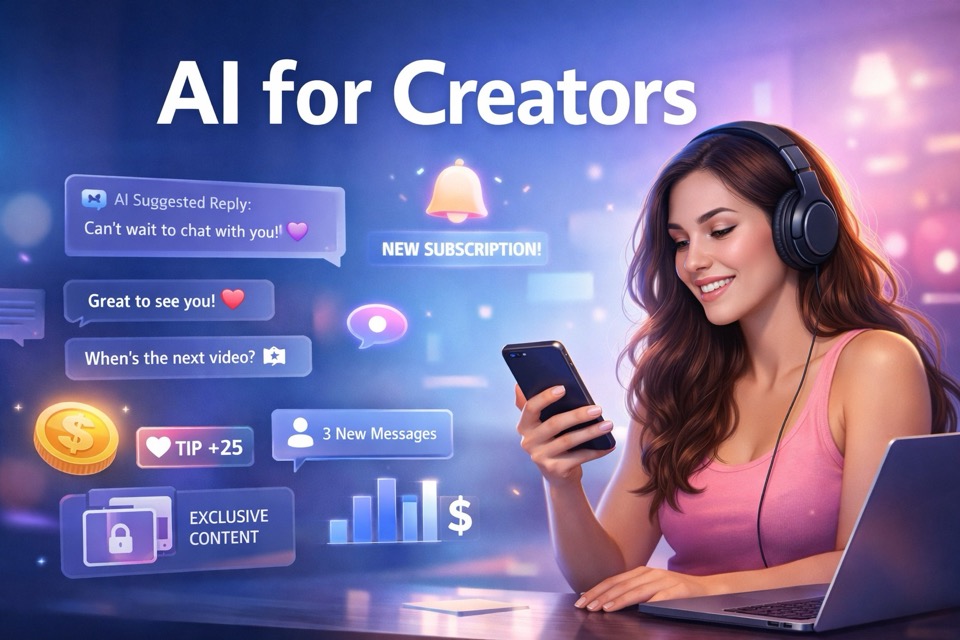
Turn Animated Photos into a Real AI Character Business with Scrile AI
Animating a photo is a good first step. It can help you test a face, a voice, a short video format, or a simple talking avatar. But if the idea works, the next question is bigger: how do you turn that character into a product people can interact with, follow, and pay for?
That is where Scrile AI comes in.
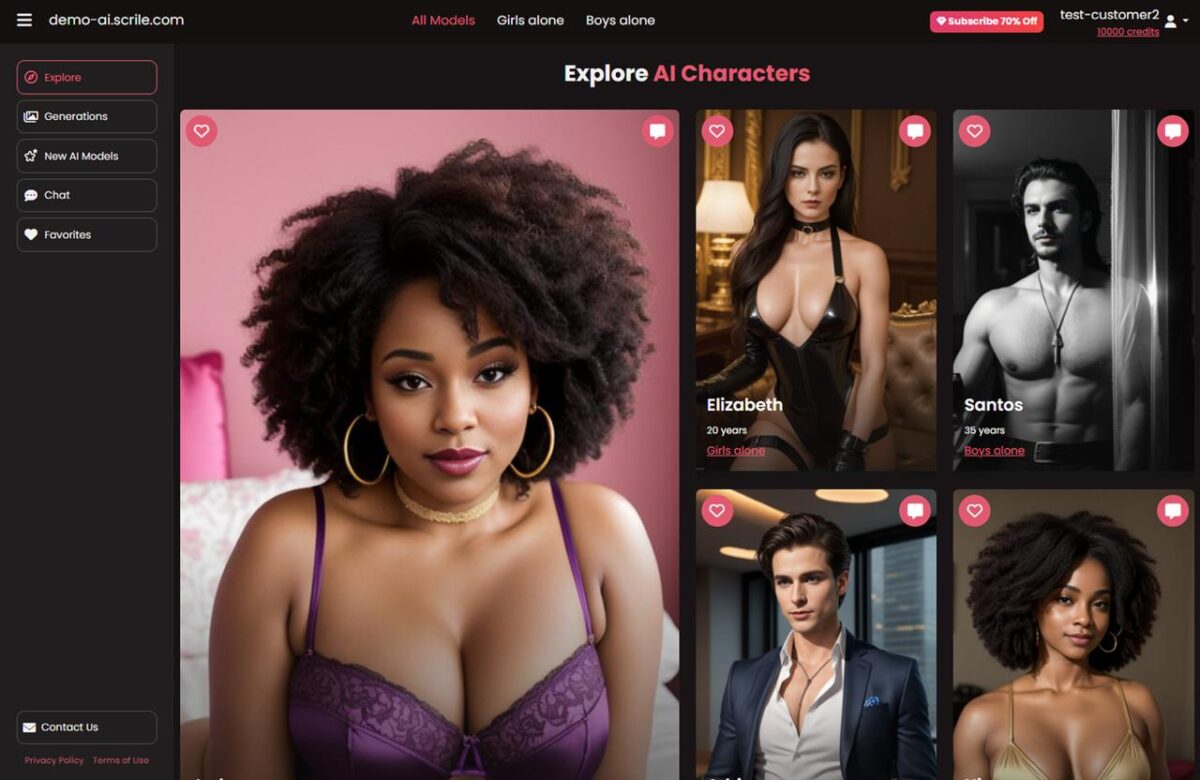
Scrile AI helps you launch your own AI companion platform with interactive characters, AI-generated images, user profiles, subscriptions, tokens, and built-in monetization tools. Instead of creating one animated clip at a time, you can build a full platform around virtual personalities.
With Scrile AI, you can create a platform with:
- AI characters managed through an admin dashboard
- text-based conversations with context and roleplay scenarios
- AI image generation and paid image access
- free and paid user levels
- subscriptions, tokens, image purchases, or other monetization models
- user galleries, saved media, and premium content previews
- custom branding, design, and platform structure
- admin tools for users, characters, payments, and analytics
- privacy settings, access limits, and moderation controls
This is a different level of control than using separate AI tools for isolated content pieces. You are not just testing animated faces. You are building a repeatable experience where users can chat, request images, unlock content, and return to the same AI characters again and again.
If animate photo AI helps you create attention, Scrile AI helps you turn that attention into a scalable business model.
Conclusion
Animate photo AI looks simple on the surface, but the real difference comes from how you use it. The tools are accessible, yet consistent results still require control over input, motion, and voice.
The key shift is thinking in use cases, not features. A talking head, a subtle animated visual, and a short video clip all follow different rules. When you match the method to the goal, the output becomes predictable instead of random.
Mastery here isn’t about finding one perfect tool. It’s about building a workflow you can repeat, adjust, and scale without losing quality.
FAQ
Can I use animate photo AI free no sign up tools for real content work?
Yes, they work for quick testing and rough drafts. For cleaner lip-sync, stronger branding, and more consistent exports, paid tools usually perform better.
How do I animate face movement realistically?
Start with a sharp, front-facing photo and keep the motion subtle. Small head turns, blinks, and matching voice timing usually look far more natural than aggressive movement.
What are the best talking photo AI tools right now?
Talking-head tools like HeyGen and D-ID are stronger for speech and lip-sync. VEED and Perfect Corp fit lighter motion better, while Runway works for more advanced image-to-video tasks.
How can I animate old photos without making them look strange?
Restore and clean the image first if possible. Old photos often have blur, damage, or uneven contrast, and those flaws make facial tracking and motion generation less stable.
Why do AI photo animations look fake?
The usual reasons are weak source images, over-animation, poor lip-sync, and mismatched emotion. Small errors around the mouth, eyes, or timing are often enough to break realism.
What is the difference between talking head and full photo animation?
Talking-head tools focus on speech, lip movement, and facial expression. Full photo animation tries to create broader motion and usually needs more control, cleaner inputs, and better prompting.
How long should an AI-animated photo clip be?
Short clips usually work best. Five to ten seconds is often enough to deliver the message while keeping facial artifacts and motion errors under control.
Do prompts matter when animating a photo with AI?
Yes, especially in more advanced workflows. Good prompts describe motion clearly and simply, while overloaded prompts often lead to exaggerated or unstable results.
